Running agentgateway on Proxmox (LXC): the Everything MCP server end-to-end
Date: June 2026 Author: Sebastian Maniak Tags: agentgateway, mcp, proxmox, lxc, docker, llm, homelab
Overview
Most agentgateway tutorials assume you have a Kubernetes cluster lying around. This one doesn’t. If you run a homelab on Proxmox, the cheapest, fastest way to get a real agentgateway instance running is a single LXC container with Docker inside it — no cluster, no Helm, no control plane to babysit.
By the end of this guide you’ll have:
- agentgateway v1.3.0 running in an unprivileged LXC container
- The official “Everything” MCP server federated behind it
- An OpenAI-compatible LLM proxy on port
4000 - The built-in admin UI (logs, analytics, the connection playground) on port
15000 - Request logging and cost tracking backed by SQLite — with no database errors
The whole thing fits in 2 vCPUs and 2 GB of RAM.
What is agentgateway, and where does the code live?
agentgateway is an open-source (Apache 2.0) connectivity data plane built specifically for agentic AI workloads. Rather than bolting agent traffic onto a traditional API gateway, it’s protocol- and session-aware from the ground up, and it unifies three things behind one binary:
- LLM Gateway — a unified OpenAI-compatible API in front of many providers, with budgets and load balancing
- MCP Gateway — tool federation across many MCP servers (stdio, HTTP/SSE, Streamable HTTP) behind one endpoint
- A2A Gateway — secure agent-to-agent communication with capability discovery
It’s written mostly in Rust for performance and memory safety (which matters for the long-lived, high-concurrency sessions MCP and A2A produce), with a Go control surface and a TypeScript UI.
- GitHub repo: https://github.com/agentgateway/agentgateway
- Latest release: v1.3.0 (June 18, 2026)
- Container image:
cr.agentgateway.dev/agentgateway:v1.3.0 - Docs: https://agentgateway.dev/docs/
- License: Apache 2.0 · ⭐ ~3.4k stars
⭐ If this setup is useful to you, star the repo — it’s a young project (created March 2025) that just crossed the v1.x line, and the maintainers ship fast.
Architecture
A single LXC holds everything. Docker runs two containers — the Everything MCP server and
agentgateway — and agentgateway talks to the MCP server over stdio via docker exec.
Proxmox host (vmbr0, 172.16.10.0/24)
└── LXC 210  "agentgateway"  (172.16.10.164, DHCP)
    └── Docker
        ├── mcp-everything   (modelcontextprotocol "everything" server)
        └── agentgateway     v1.3.0
            ├── :4000   LLM proxy   (OpenAI-compatible)
            ├── :3000   MCP gateway (Everything federated here)
            └── :15000  admin UI    (logs + analytics + playground)
Prerequisites
- Proxmox VE 8.x
- A bridge (
vmbr0) with DHCP on the172.16.10.xnetwork - Docker Hub access (or a local registry mirror)
- An LLM provider API key if you want to exercise the LLM proxy (OpenAI in this example)
Step 1: Create the LXC container
We use an unprivileged Alpine container with nesting enabled so Docker can run inside it.
# Download the Alpine template
pveam download local alpine-3.20-default_20240908_amd64.tar.xz

# Create container (CTID 210)
pct create 210 /var/lib/vz/template/cache/alpine-3.20-default_20240908_amd64.tar.xz \
  --hostname agentgateway \
  --cores 2 \
  --memory 2048 \
  --net0 name=eth0,bridge=vmbr0,ip=dhcp \
  --rootfs local-lvm:8 \
  --unprivileged 1 \
  --features nesting=1,keyctl=1 \
  --onboot 1

pct start 210
The --features nesting=1,keyctl=1 flags are the important bit — without nesting,
Docker won’t start inside an unprivileged container, and keyctl keeps Docker’s
keyring happy.
You should now see the container in the Proxmox UI:
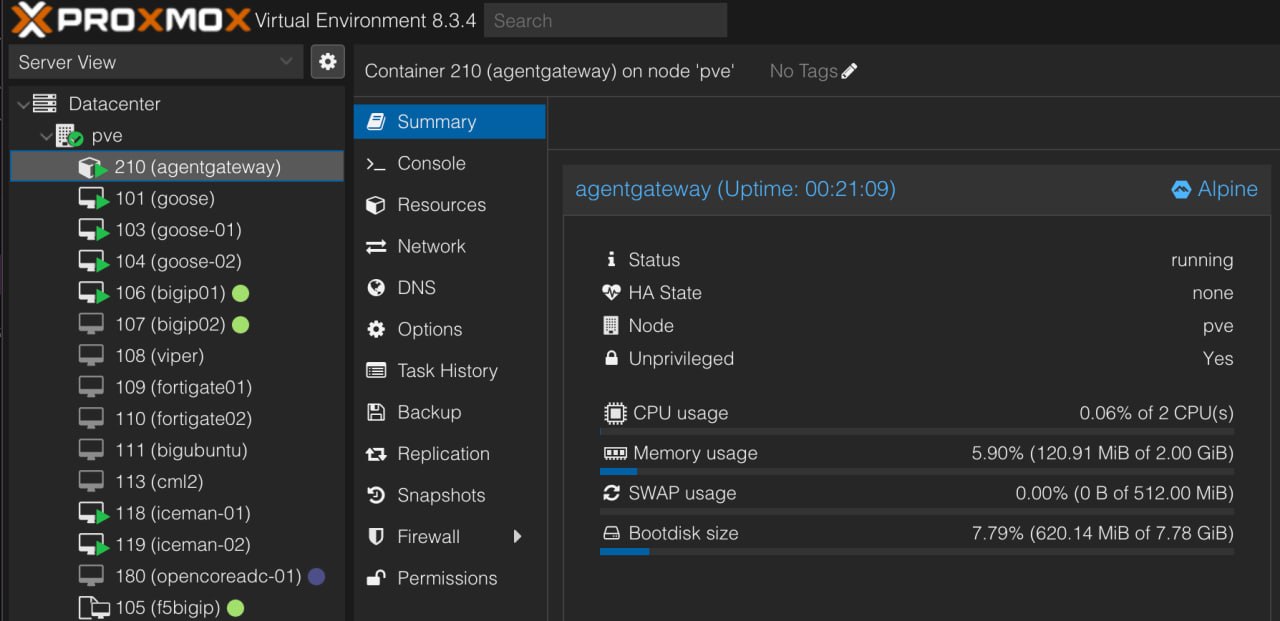
Tip: find the container’s DHCP-assigned IP with
pct exec 210 -- ip -4 addr show eth0. Everything below assumes it landed on172.16.10.164— substitute your own.
Step 2: Install Docker inside the LXC
pct exec 210 -- apk update
pct exec 210 -- apk add docker docker-compose
pct exec 210 -- rc-update add docker boot
pct exec 210 -- service docker start

# Sanity check
pct exec 210 -- docker info
Step 3: Deploy the Everything MCP server
The Everything server is the reference MCP server from the Model Context Protocol project. It exposes every MCP primitive — tools, prompts, resources, sampling — which makes it perfect for verifying that your gateway is wired correctly before you connect anything real.
pct exec 210 -- docker run -d \
  --name mcp-everything \
  --restart unless-stopped \
  modelcontextprotocol/servers:latest everything
We keep this container alive and let agentgateway attach to it over stdio with
docker exec (configured in the next step). That avoids exposing the MCP server’s raw
port on the network — the only thing clients ever talk to is the gateway.
Step 4: Create the agentgateway configuration
Create /config/config.yaml inside the LXC. This single file wires up the LLM proxy, the
MCP target, and CORS so the admin UI can call both planes from the browser.
config:
  database:
    url: sqlite:///config/data/data.db

llm:
  port: 4000
  models:
    - name: openai/*
      provider: openai
      params:
        model: gpt-4.1-mini
        apiKey: "sk-..."
  policies:
    cors:
      allowOrigins:
        - "http://172.16.10.164:15000"
      allowHeaders:
        - "*"
      allowMethods:
        - GET
        - POST
  providers: []
  virtualModels: []

mcp:
  port: 3000
  targets:
    - name: everything
      stdio:
        cmd: docker
        args:
          - "exec"
          - "-i"
          - "mcp-everything"
          - "node"
          - "dist/index.js"
  policies:
    cors:
      allowOrigins:
        - "http://172.16.10.164:15000"
      allowHeaders:
        - "*"
      allowMethods:
        - GET
        - POST
      exposeHeaders:
        - Mcp-Session-Id

frontendPolicies:
  http:
    maxBufferSize: 33554432
A few things worth understanding here:
database.urlpoints at a SQLite file under/config/data. This is what powers the Logs and Analytics tabs in the UI — if it can’t be created, those tabs throw errors (see Troubleshooting).- The MCP
stdiotarget literally runsdocker exec -i mcp-everything node dist/index.js. agentgateway speaks JSON-RPC over that pipe, so the gateway and the MCP container share the same Docker daemon inside the LXC. exposeHeaders: [Mcp-Session-Id]is required for browser-based MCP clients — MCP sessions are stateful, and the session ID rides in that header.- CORS
allowOriginsmust match the URL you open the UI from. If you reach the UI by hostname or a different IP, add that origin here too, or the browser will block the calls. maxBufferSize: 33554432(32 MB) gives MCP responses with large resource payloads room to breathe.
🔐 Don’t hardcode keys in production. Replace the inline
apiKey: "sk-..."with an environment variable reference and pass it via-e OPENAI_API_KEY=...on thedocker run. Inline is fine for a throwaway homelab box; it is not fine for anything shared.
Step 5: Run agentgateway
pct exec 210 -- mkdir -p /config/data
pct exec 210 -- docker run -d \
  --name agentgateway \
  --restart unless-stopped \
  -v /config:/config \
  -p 4000:4000 \
  -p 3000:3000 \
  -p 15000:15000 \
  -e ADMIN_ADDR=0.0.0.0:15000 \
  cr.agentgateway.dev/agentgateway:v1.3.0 \
  -f /config/config.yaml
ADMIN_ADDR=0.0.0.0:15000 binds the admin UI to all interfaces so you can reach it from
your workstation — by default it only listens on loopback, which is invisible from outside
the container.
Tail the logs to confirm a clean start:
pct exec 210 -- docker logs -f agentgateway
Step 6: Verify everything works
Open the UI:
http://172.16.10.164:15000/ui
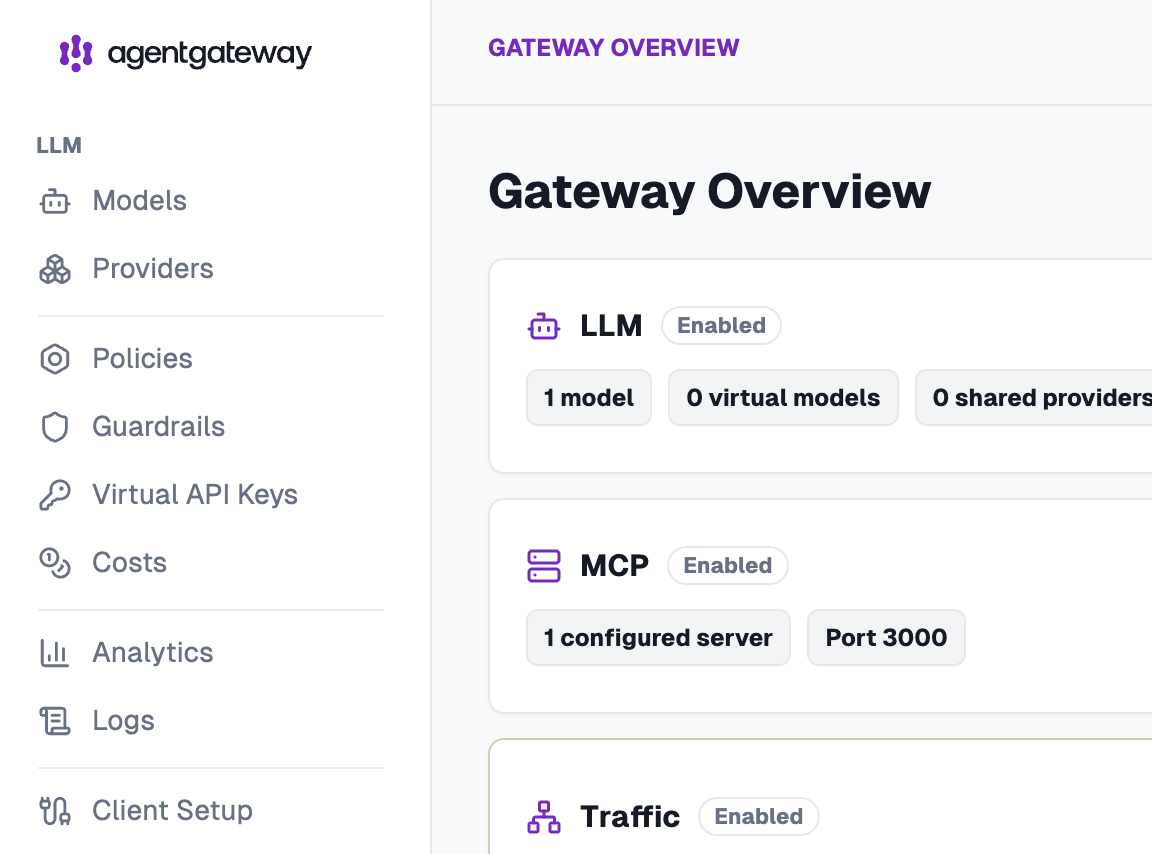
You should see:
- LLM proxy on port 4000
- MCP server (Everything) on port 3000, with its tools listed in the playground
- Admin UI on port 15000
- Logs and Analytics populated (no database errors)
Quick smoke tests from your workstation:
# LLM proxy — OpenAI-compatible, so any OpenAI SDK/curl works
curl http://172.16.10.164:4000/v1/chat/completions \
  -H "Content-Type: application/json" \
  -d '{
    "model": "openai/gpt-4.1-mini",
    "messages": [{"role": "user", "content": "Say hello from Proxmox"}]
  }'

# MCP gateway — list the tools Everything exposes through the gateway
curl http://172.16.10.164:3000/ \
  -H "Content-Type: application/json" \
  -d '{"jsonrpc":"2.0","id":1,"method":"tools/list"}'
Here’s what the working UI looks like:
Troubleshooting
Docker won’t start in the LXC. You almost certainly created the container without
nesting=1. Add it with
pct set 210 --features nesting=1,keyctl=1 and restart the container.
Logs/Analytics tabs show a database error. The /config/data directory didn’t exist
when the container started, so SQLite couldn’t create the file. Run
pct exec 210 -- mkdir -p /config/data, then recreate the container (the -v /config:/config
mount persists it).
UI loads but API calls fail with CORS errors. The origin you opened the UI from isn’t
in allowOrigins. Match it exactly — scheme, IP/host, and port — for both the llm and
mcp CORS policies.
MCP target shows no tools. Confirm the Everything container is up
(pct exec 210 -- docker ps) and that the stdio args point at the right entrypoint
(node dist/index.js). docker logs mcp-everything will tell you if it crashed on start.
Final notes
- The container IP is
172.16.10.164(DHCP) — pin a reservation on your router if you want it stable. - All important ports are bound to
0.0.0.0; if this box isn’t on a trusted LAN, put it behind a firewall or reverse proxy with auth. - The Everything MCP server is connected via Docker
execstdio, so it’s never exposed directly.
This gives you a production-shaped agentgateway — LLM proxy, MCP federation, observability,
and a UI — running on a single Proxmox LXC. From here, swap the Everything server for real
MCP servers, add more LLM providers to the models list, or layer in RBAC and rate limiting
from the agentgateway docs.
Go deeper
- Source & releases: https://github.com/agentgateway/agentgateway
- Documentation: https://agentgateway.dev/docs/
- Everything MCP server: https://github.com/modelcontextprotocol/servers/tree/main/src/everything