Most of what I’ve written about agentgateway runs
on Kubernetes. That’s the right home for it in production.
But if you want something fast that runs in render.com and all you want is a public HTTPS URL you can hand to a
teammate, point an IDE at, and click around in — today, without a kind cluster, an ingress controller, and a cert-manager issuer.
It's the hands-on build of the [`34-render-deploy-agw`](https://github.com/sebbycorp/agentgateway-demos/tree/main/34-render-deploy-agw) demo: standalone agentgateway **1.5.0** running as one [Render](https://render.com) Web Service.
When you're done, one hostname serves three things:
| Public path | Who uses it | How it’s protected |
|---|---|---|
/ui/ | You, the operator | Browser basic-auth prompt (UI_USER / UI_PASSWORD) |
/v1/* | Apps, the playground, curl | A virtual API key sent as a Bearer token |
/mcp | MCP clients | The gateway holds the GitHub token; clients never see it |
The screenshots are from the live service
agentgateway-standalone, not
a mock. Every field name, env var, and log line comes from the committed
Blueprint and a real deploy.
Before you start
You need four things:
- A Render account on at least the Starter plan. The Free plan has no persistent disks, and this lab needs one.
- An OpenAI API key (or any provider agentgateway supports — the steps are the same).
- A GitHub personal access token if you want the MCP part. Scope it tightly; more on that later.
- A password you’re willing to type into a browser prompt. Render can generate one for you.
What Render is, and why it fits
Render is a cloud platform-as-a-service in the Heroku tradition. You connect a Git repository and tell Render how to build it (in our case, a Dockerfile). Render builds the image, runs it, and puts it behind a public hostname with a TLS certificate it provisions and renews for you. Deploys, logs, environment variables, and persistent disks all live in one dashboard.
Render also supports Blueprints: a render.yaml file in the repo that
declares the service, its plan, its env vars, and its disk. That’s what makes
this deploy reproducible and one-click.
Three things make Render a good fit for an agentgateway lab:
- TLS is handled. Render terminates HTTPS on
:443and forwards to your container. You never touch a certificate. - Disks persist. agentgateway’s config, its password file, and its SQLite
database survive a redeploy on a 1 GB disk mounted at
/config. - Env vars are the secret store. Provider keys and the UI password live in
the dashboard, and agentgateway expands
$VARSin its config at runtime. Nothing sensitive goes into git.
The one constraint to know about: Render gives you exactly one public port. That single fact shapes the whole design below.
The shape of it
Because there’s one public port, the UI, the LLM API, and the MCP endpoint
all share a single gateway on :4000 and split by path. The admin interface
on :15000 stays on loopback inside the container and is never on the
internet. Everything stateful lives on the agw-config disk at /config.
Two rules to keep in your head:
- HTTPS only. Don’t call the lab over
http://, and don’t try to reach:4000on the public hostname. Render’s edge is the only door. - The UI password and the LLM keys are separate. The UI password
protects
/ui/. The LLM path is protected by virtual API keys. Sending the UI password as a Bearer token won’t work, by design.
Why the demo builds its own image
The demo does not deploy the official cr.agentgateway.dev/agentgateway:v1.5.0
image directly. It builds the repo’s
deploy/Dockerfile,
which wraps the official binary with a small Go entrypoint. Two reasons.
Reason one: an empty config means an open UI
Start the official image with an empty /config and it auto-generates a
default config that serves /ui/ with no authentication. On your laptop,
fine. On a public .onrender.com hostname, it’s a live admin panel sitting
in front of your OpenAI key.
The entrypoint closes that hole on every boot:
- It reads
UI_USERandUI_PASSWORDfrom the environment and writes a password line to/config/.htpasswd. - If there’s no
config.yaml, it writes one with basic auth already turned on for the UI. - If a
config.yamlexists but the UI has no auth policy, it adds one. - If
UI_PASSWORDis missing, it refuses to start.
The seed config it writes is short:
config:
  database:
    url: sqlite:///config/data.db
gateways:
  default:
    port: 4000
ui:
  gateways: [default]
  policies:
    basicAuth:
      mode: strict
      htpasswd:
        file: /config/.htpasswd
      realm: agentgateway
Then it hands off to agentgateway -f /config/config.yaml. From there the
gateway watches the file, so changes you make in the UI or by hand are
picked up live.
Reason two: stdio MCP servers need Node
The official image is distroless: no shell, no Node. If you ever want to run
something like npx -y @modelcontextprotocol/server-everything as a stdio
MCP target, npx has to exist in the container. The Dockerfile’s final stage
is Debian with Node 22, the gateway binary copied from the official image,
and the official image’s CA bundle copied alongside it. The build fails if
any of those are missing, so a broken image never reaches Render.
One detail worth knowing: the image runs as root, because Render’s disk is
root-owned and first boot has to write to /config. For a lab that’s fine.
The Blueprint
Everything Render needs is in
34-render-deploy-agw/render.yaml:
services:
  - type: web
    name: agentgateway
    runtime: docker
    plan: starter
    numInstances: 1
    autoDeployTrigger: off
    dockerfilePath: ./deploy/Dockerfile
    dockerContext: ./deploy
    disk:
      name: agw-config
      mountPath: /config
      sizeGB: 1
    envVars:
      - key: PORT
        value: "4000"
      - key: UI_PASSWORD
        sync: false
      - key: UI_USER
        value: admin
      - key: OPENAI_API_KEY
        sync: false
      - key: ANTHROPIC_API_KEY
        sync: false
      - key: GITHUB_PERSONAL_ACCESS_TOKEN
        sync: false
A few lines deserve a closer look:
runtime: docker, notruntime: image. An “Existing Image” deploy skips the Dockerfile, skips the entrypoint, and leaves/ui/open.dockerfilePathanddockerContextare relative to the repo root, even though this Blueprint lives in a subdirectory. That’s how Render’s spec works, and it’s why the paths say./deploy/and not../deploy/.PORTis pinned to4000. Render routes public traffic to$PORT, which defaults to10000. The gateway listens on4000. If they disagree you get a service that says “live” and never answers.autoDeployTrigger: offmeans pushes to the demos repo don’t redeploy every copy that anyone has ever clicked the button for. Note it’s only this field: Render rejects a Blueprint that sets bothautoDeployandautoDeployTrigger, so the olderautoDeploy: falseline is gone.- No
healthCheckPath./ui/returns 401 by design, and Render would read that as unhealthy. Leaving the path out makes Render use a TCP check on:4000instead.
sync: false on a key means “ask me for this when the service is created,
and never store it in the repo.”
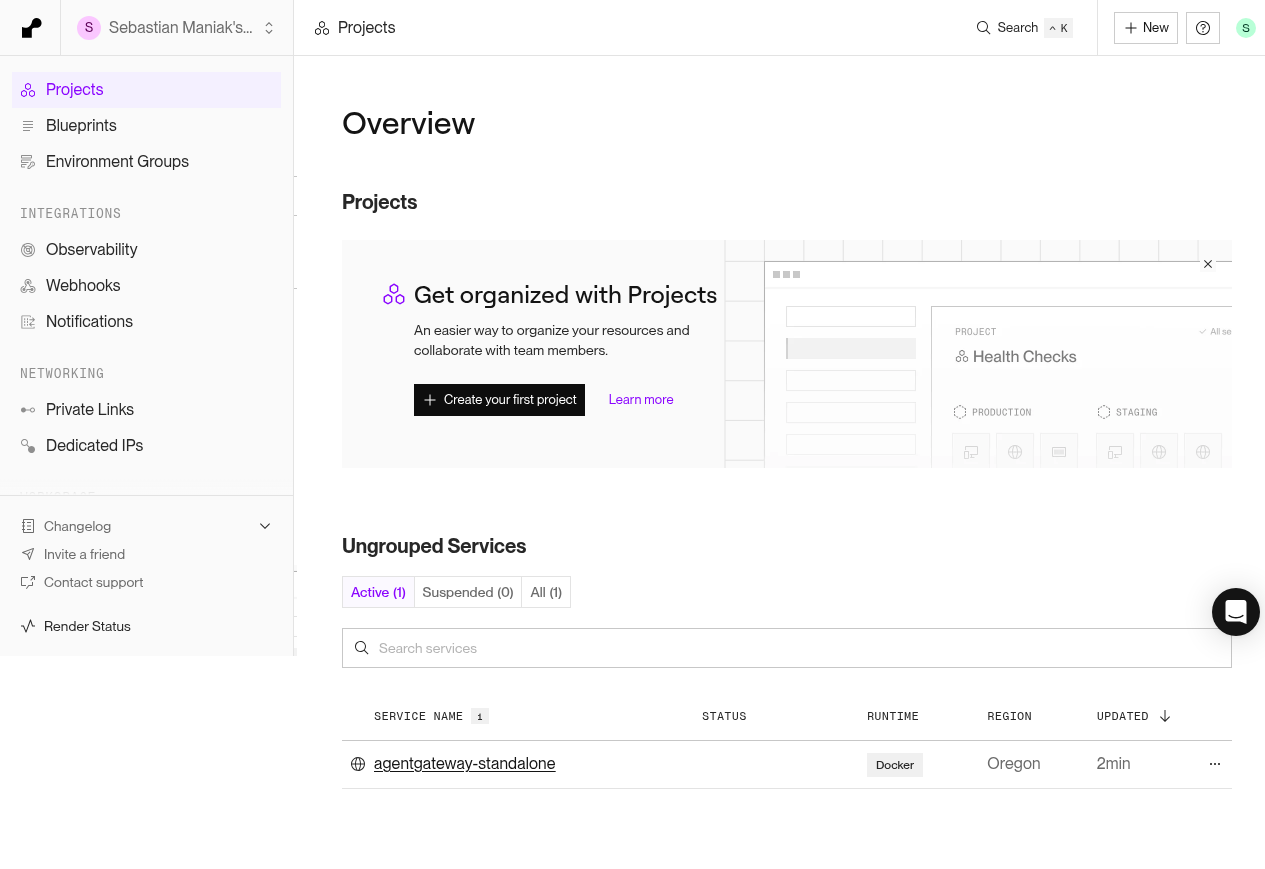
Step 1: create the service
The easy way is the Deploy button. Because the Blueprint isn’t at the repo
root, the URL carries a path parameter (it’s path, not blueprintPath):
https://render.com/deploy?repo=https://github.com/sebbycorp/agentgateway-demos&path=34-render-deploy-agw/render.yaml
From the dashboard: New → Blueprint, pick the repo, and set Blueprint
Path to 34-render-deploy-agw/render.yaml.
By hand: New → Web Service, this repo, environment Docker, Dockerfile
path ./deploy/Dockerfile, context ./deploy, plan Starter. Whatever you
do, don’t pick Existing Image with the official tag. That’s the open-UI
trap from the previous section.
Step 2: set the environment variables
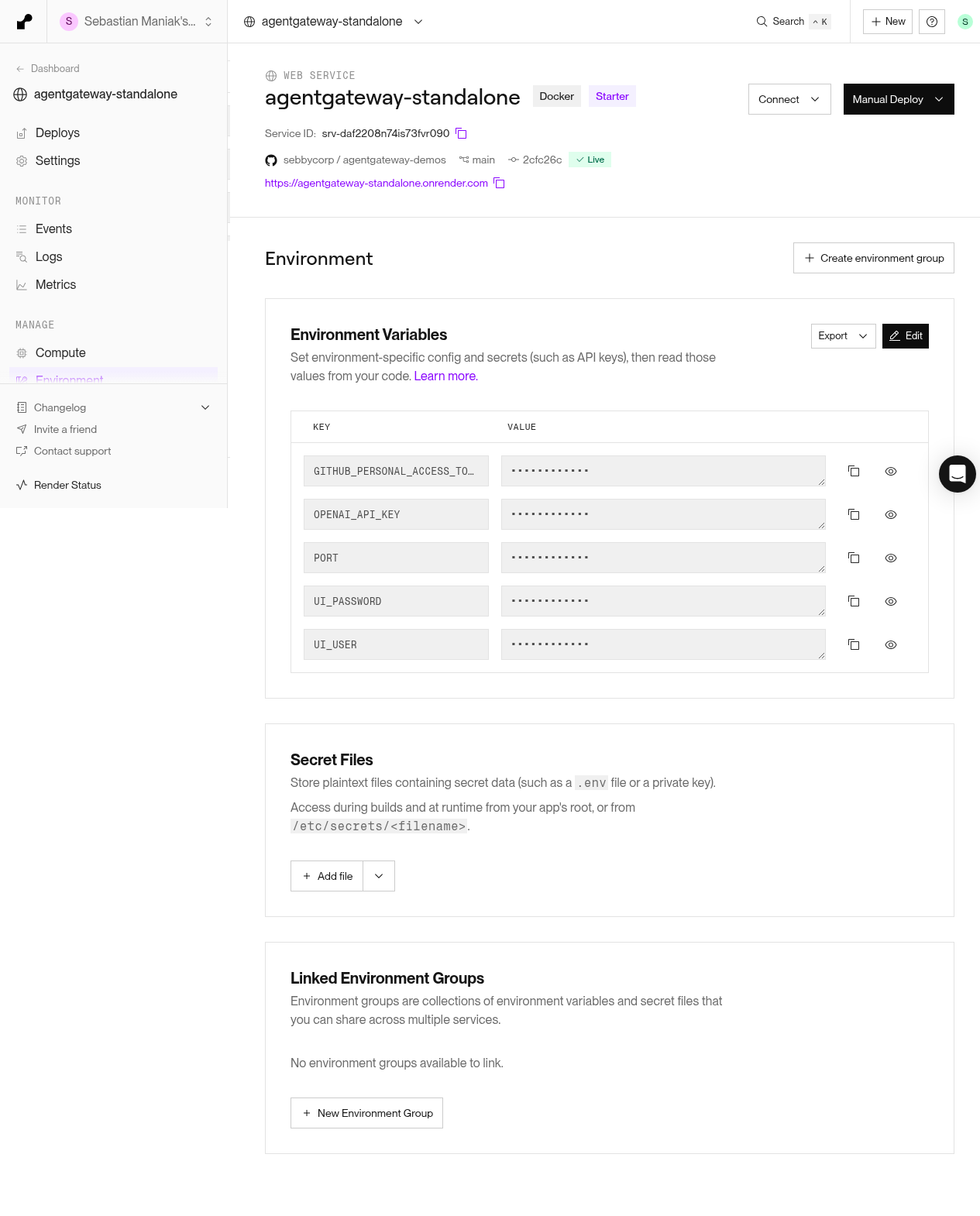
Render prompts for every sync: false key when the Blueprint is first
created. You can also set them any time in the Environment tab.
| Variable | Required? | What it does |
|---|---|---|
PORT | Yes | Must be 4000 so Render’s proxy and the gateway agree. |
UI_USER | No | Basic-auth username. Defaults to admin. |
UI_PASSWORD | Yes | Written to /config/.htpasswd on every start. Unset means the container exits. |
OPENAI_API_KEY | For OpenAI | Referenced as $OPENAI_API_KEY on the model. |
GITHUB_PERSONAL_ACCESS_TOKEN | For GitHub MCP | Sent upstream by the gateway to api.githubcopilot.com. |
Use Render’s Generate button for UI_PASSWORD. Paste provider tokens
straight into the dashboard, never into git.
Step 3: check the disk
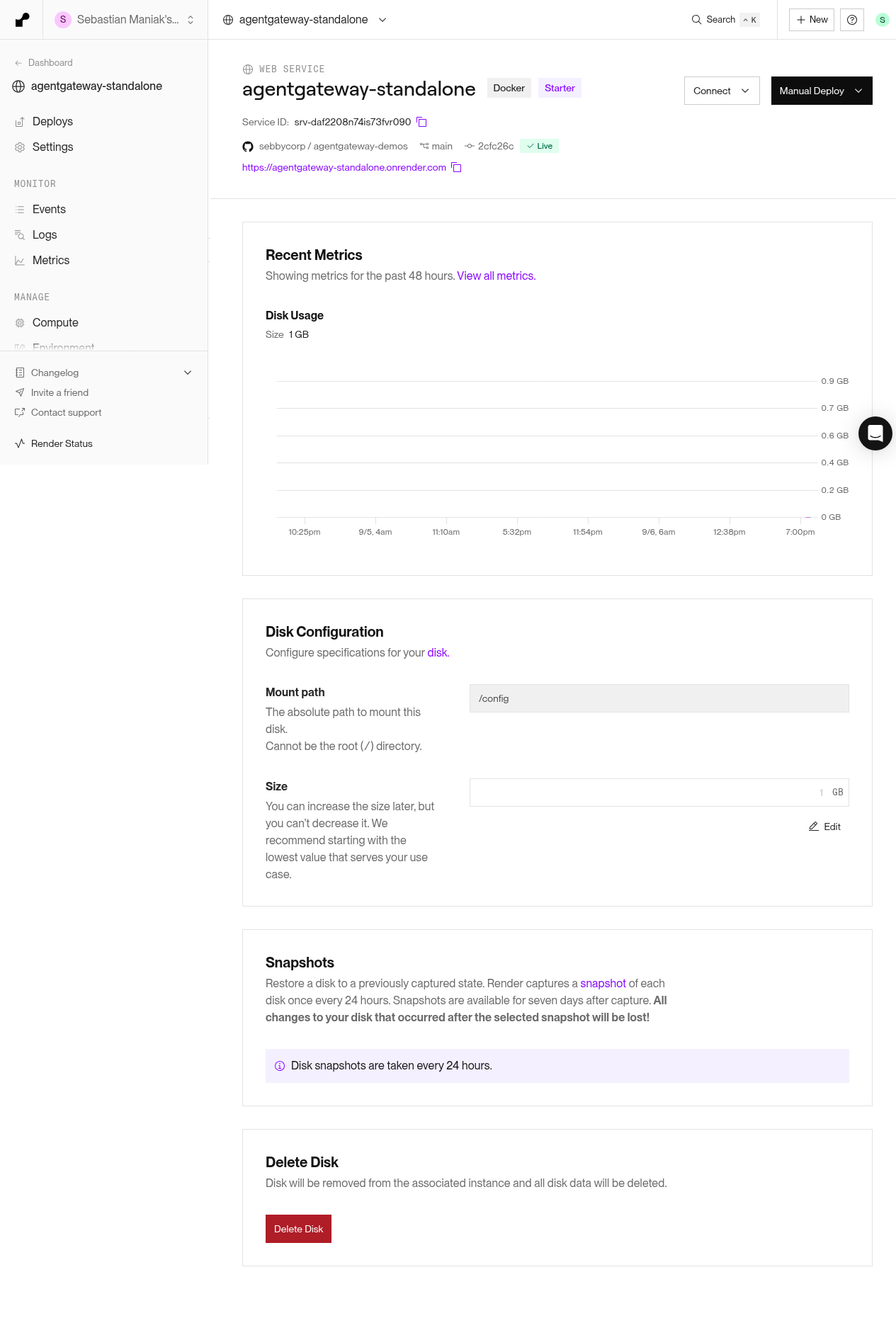
The Blueprint already declares a 1 GB disk named agw-config mounted at
/config. That’s where config.yaml, .htpasswd, and the SQLite database
live. Without it, every deploy starts from scratch: your models, virtual
keys, MCP servers, and logs all disappear.
Nothing to do here except confirm it’s there. If you built the service by hand, add it under Disks.
Step 4: deploy and watch the logs
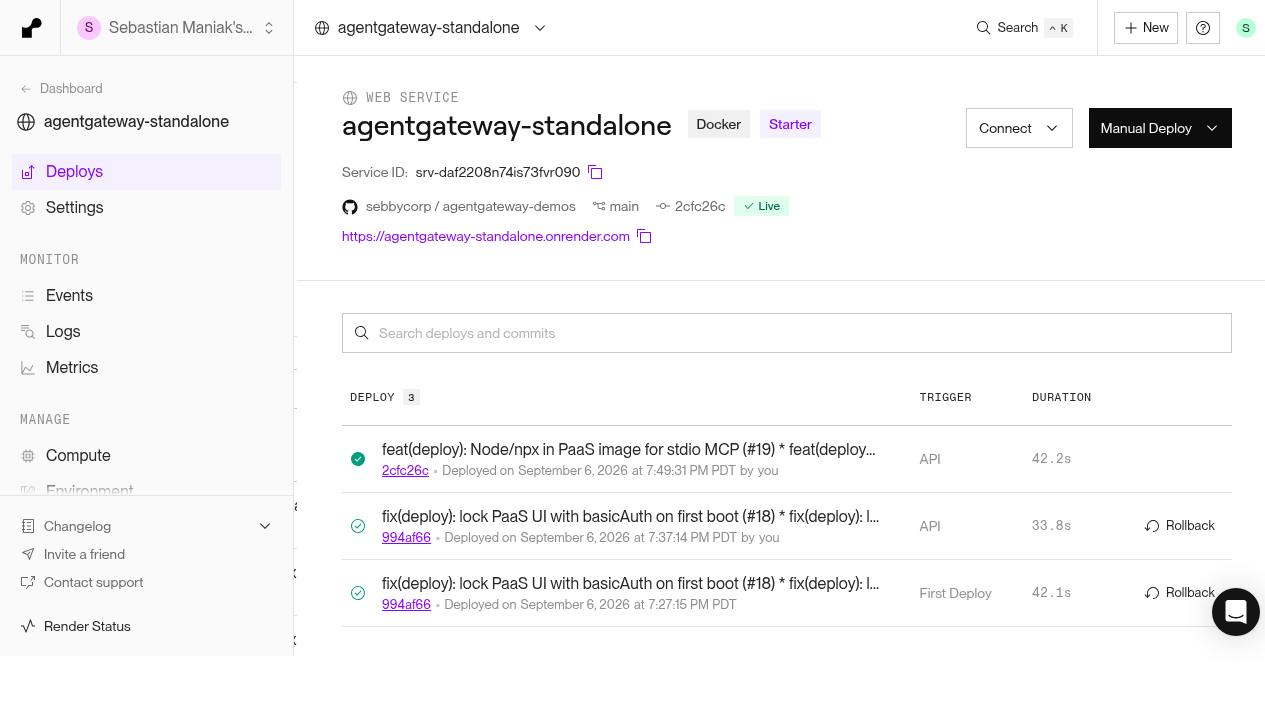
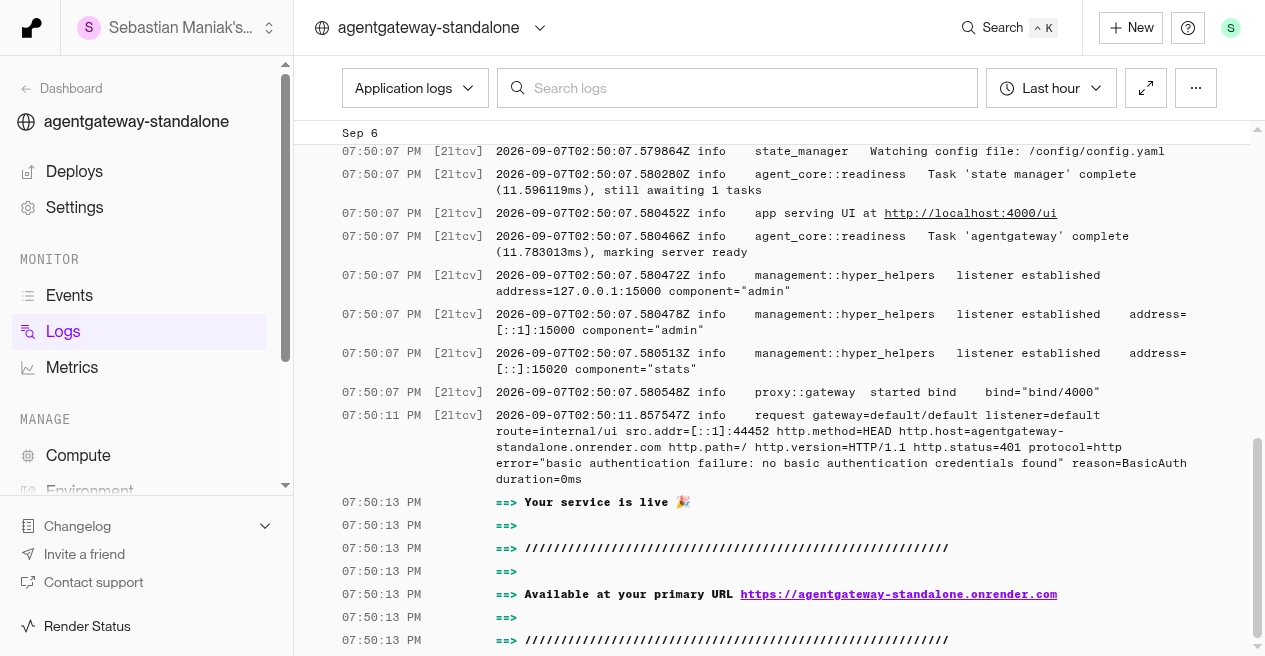
Start the deploy. On first boot the entrypoint writes the password file and the seed config, then the gateway starts. In the Render log stream, these are the lines that mean it worked:
state_manager Watching config file: /config/config.yaml
app serving UI at http://localhost:4000/ui
proxy::gateway started bind bind="bind/4000"
... admin on 127.0.0.1:15000
==> Your service is live
Soon after, you’ll likely see a 401 on /ui/ with
basic authentication failure: no basic authentication credentials found.
That’s good news. It means the UI is up and asking for a password.
Step 5: open the UI
https://<your-service>.onrender.com/ui/
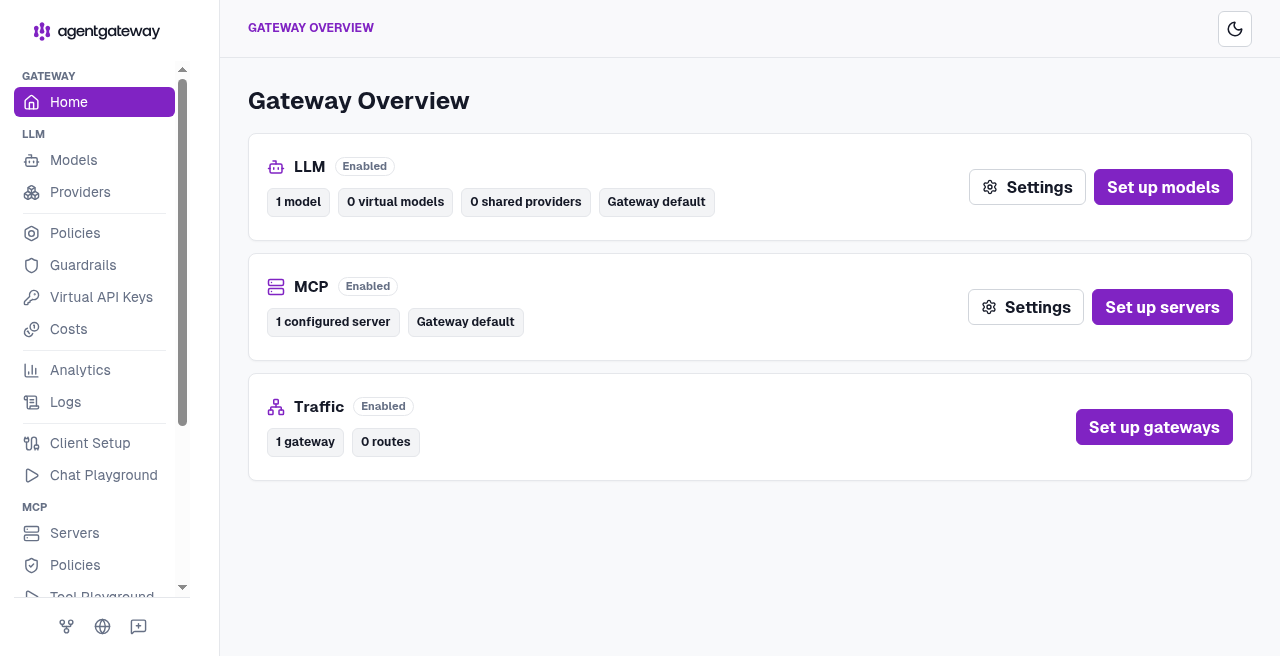
Your browser asks for a username and password. Enter UI_USER and
UI_PASSWORD. The Gateway Overview should show LLM, MCP, and Traffic panels,
all attached to the gateway named default.
Step 6: add OpenAI
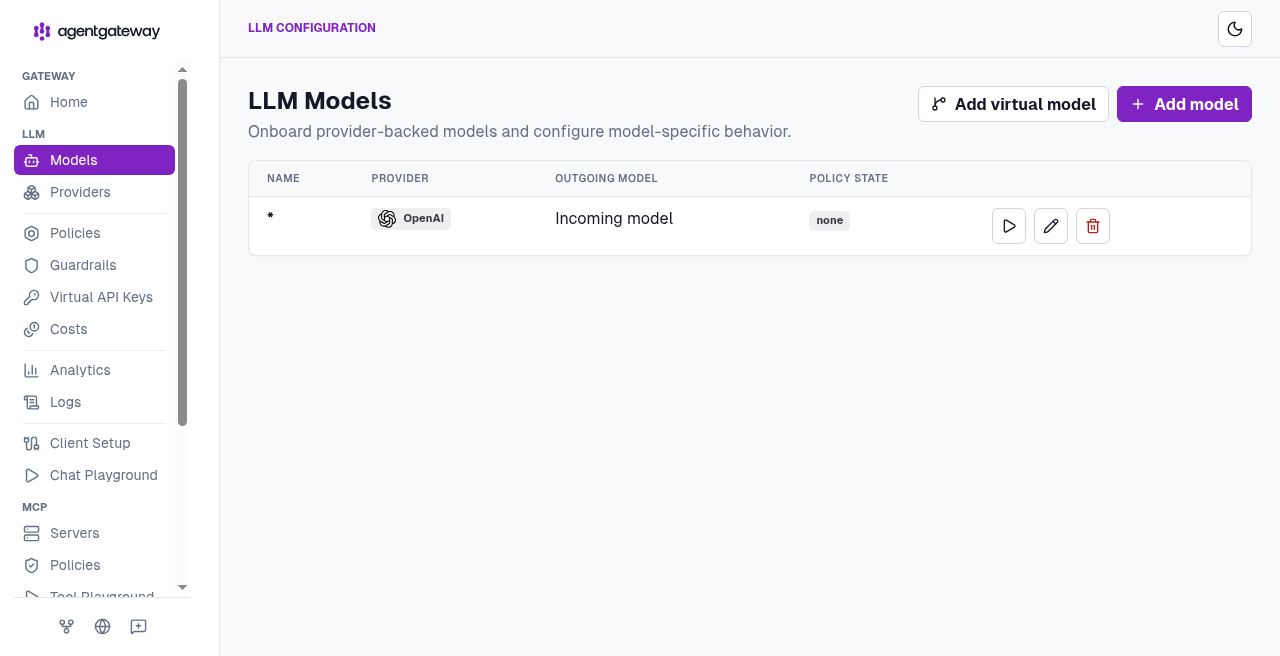
Go to LLM → Models → Add model and fill in:
- Incoming model name:
* - Provider: OpenAI
- API key:
$OPENAI_API_KEY - Outgoing model: leave as “Incoming model”
The * means “any model name a client asks for,” and “Incoming model” means
“pass that name through to OpenAI unchanged.” The $OPENAI_API_KEY reference
is expanded at runtime, so the real key never lands in config.yaml.
If you’d rather edit the file on the disk, this is the same thing:
llm:
  gateways: [default]
  models:
  - name: '*'
    provider: openAI
    params:
      apiKey: $OPENAI_API_KEY
Step 7: add virtual API keys
This is what makes a public /v1/* safe to expose. Go to LLM → Virtual API
Keys (or edit config.yaml) and set the policy to strict mode, which
means every request must carry a key the gateway knows.
The lab defines three keys with three different scopes:
| Key (placeholder) | Name | Models allowed | Extra |
|---|---|---|---|
sk-lab-admin-... | admin | any | — |
sk-lab-demo-... | demo | a chosen list | — |
sk-lab-limited-... | limited | gpt-4.1-nano only | 1,000 tokens per rolling hour, then blocked |
llm:
  policies:
    apiKey:
      mode: strict
      keys:
      - key: sk-lab-admin-...
        metadata: { name: admin }
      - key: sk-lab-demo-...
        metadata: { name: demo }
        allowedModels: [gpt-4.1-nano, gpt-4.1, gpt-4o]
      - key: sk-lab-limited-...
        metadata: { name: limited }
        allowedModels: [gpt-4.1-nano]
        budgets:
        - name: tokens
          limit: { unit: Tokens, amount: 1000 }
          window: { rolling: 1h }
          onBudgetExceeded: Block
Once strict mode is on, a GET /v1/models with no Authorization header
returns api key authentication failure: no API Key found. That’s the policy
working, not a bug.
The sk-lab-... strings are placeholders. Your real keys live only on the
disk and in the dashboard. For the full story on allowedModels, budgets,
and windows, see
the per-key token budgets how-to.
Step 8: make a chat call
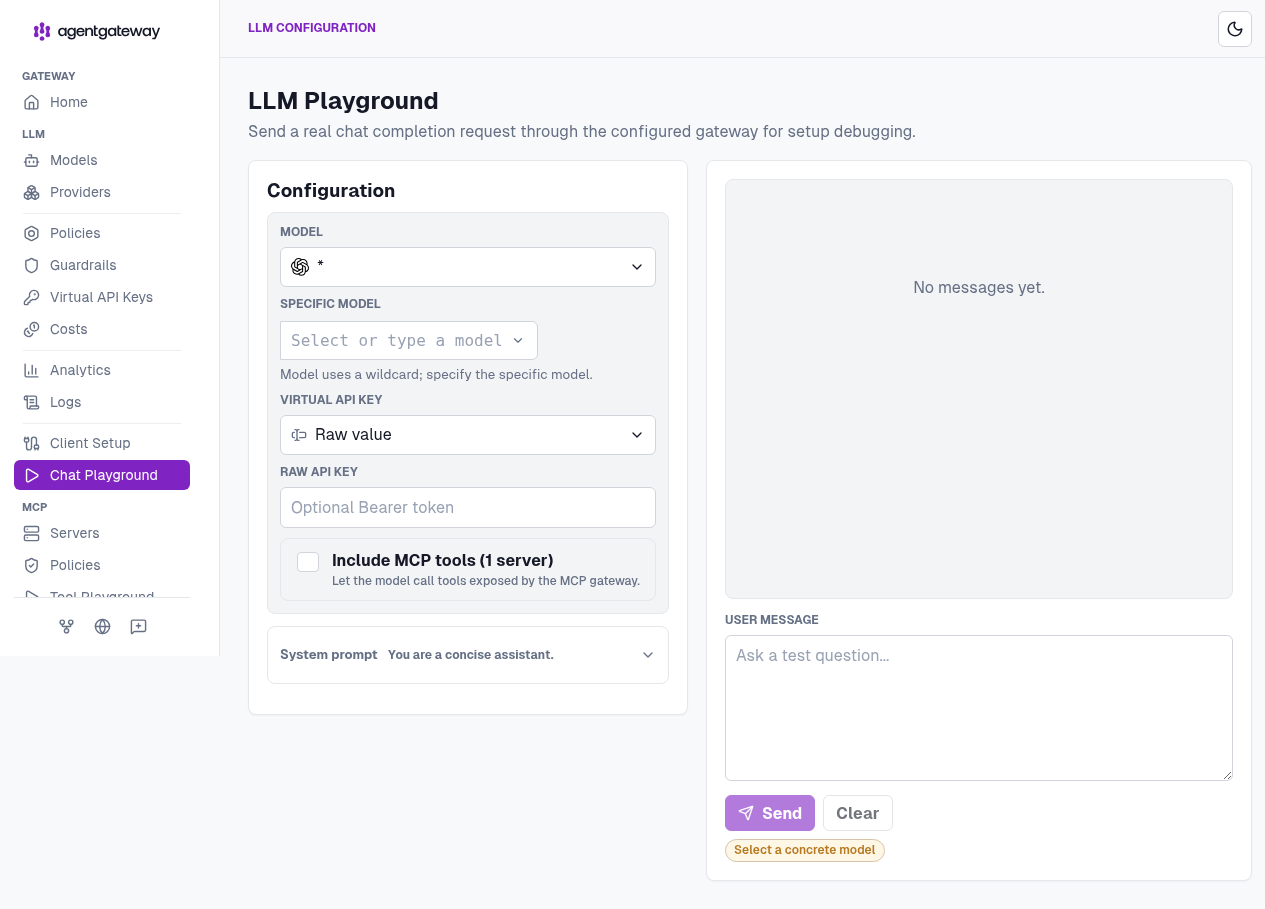
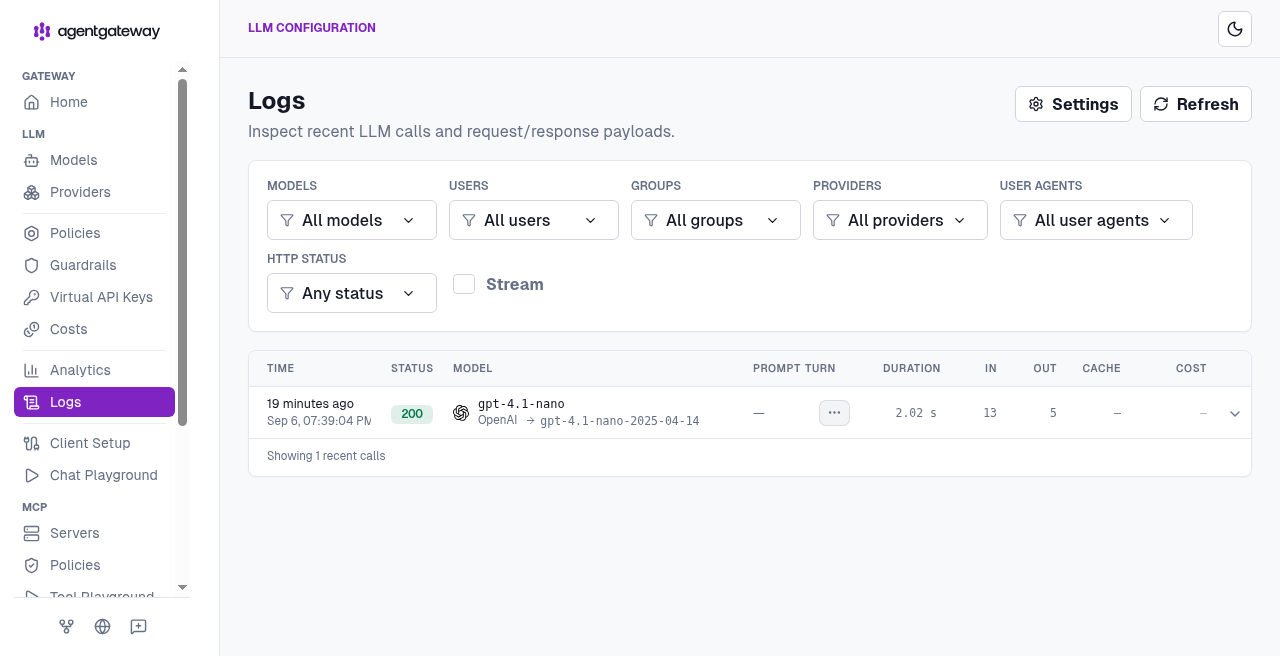
In the UI’s Chat Playground, pick a specific model first. The wildcard
row won’t let you hit Send until you do; gpt-4.1-nano is what the live
logs show.
From a terminal, it’s a normal OpenAI-style call with a virtual key as the Bearer token:
export HOST=https://agentgateway-standalone.onrender.com
export VKEY='sk-lab-limited-...'   # placeholder — use your own key

curl -sS "$HOST/v1/chat/completions" \
  -H "Authorization: Bearer $VKEY" \
  -H 'Content-Type: application/json' \
  -d '{
    "model": "gpt-4.1-nano",
    "messages": [{"role": "user", "content": "Reply with one word: pong"}]
  }'
A successful call shows up under LLM → Logs with the model OpenAI actually resolved, the latency, and the token counts.
Step 9: add the GitHub MCP server
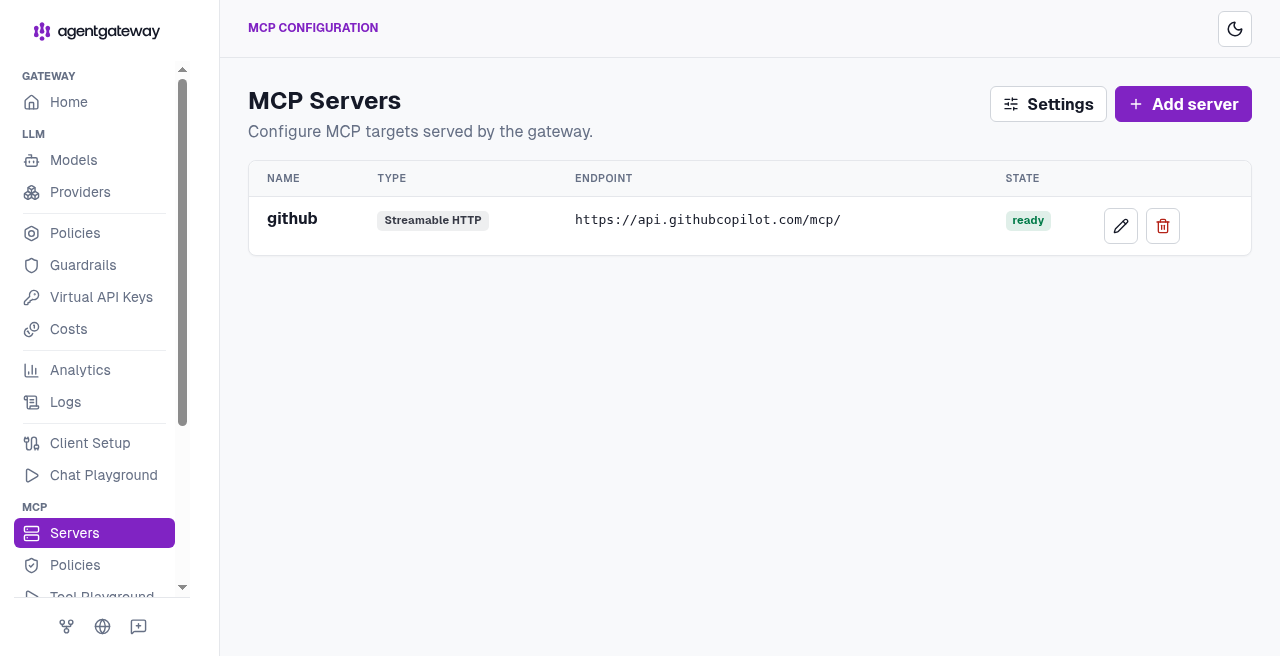
Go to MCP → Servers → Add server and fill in:
- Name:
github - Type: Streamable HTTP
- Endpoint:
https://api.githubcopilot.com/mcp/
Attach it to the existing default gateway. There’s no second public port
to put it on, and you don’t need one.
The authentication is a backend key: the gateway holds your GitHub token and adds it to every upstream call. MCP clients never see it.
mcp:
  gateways: [default]
  targets:
  - name: github
    mcp:
      host: https://api.githubcopilot.com/mcp/
    policies:
      backendAuth:
        key:
          value: $GITHUB_PERSONAL_ACCESS_TOKEN
The server’s state should turn ready. Clients then connect to
https://<your-service>.onrender.com/mcp, and the playground’s “Include MCP
tools” toggle will show one server.
Want a stdio server too? The image already has npx, so a
server-everything target works. Attach it to default like everything
else. One port.
Step 10: prove it works
This is the whole smoke test. HTTPS only, placeholders for secrets.
HOST=https://<your-service>.onrender.com

# 1. UI is locked without credentials
curl -sI "$HOST/ui/" | grep -E 'HTTP/|www-authenticate'
# HTTP/2 401
# www-authenticate: Basic realm="agentgateway"

# 2. UI opens with credentials
curl -sI -u "$UI_USER:$UI_PASSWORD" "$HOST/ui/" | head -5
# HTTP/2 200

# 3. LLM path refuses anonymous callers
curl -sS "$HOST/v1/models"
# api key authentication failure: no API Key found

# 4. LLM path works with a virtual key
curl -sS "$HOST/v1/models" -H "Authorization: Bearer sk-lab-admin-..."
curl -sS "$HOST/v1/chat/completions" \
  -H "Authorization: Bearer sk-lab-limited-..." \
  -H 'Content-Type: application/json' \
  -d '{"model":"gpt-4.1-nano","messages":[{"role":"user","content":"Reply with one word: pong"}]}'
# the limited key has a token budget — expect 429 budget_exceeded once it fills

# 5. MCP handshake reaches GitHub
curl -sS "$HOST/mcp" \
  -H 'Content-Type: application/json' \
  -H 'Accept: application/json, text/event-stream' \
  -H 'mcp-protocol-version: 2025-06-18' \
  -d '{"jsonrpc":"2.0","id":1,"method":"initialize","params":{"protocolVersion":"2025-06-18","capabilities":{},"clientInfo":{"name":"howto","version":"1"}}}'
# look for serverInfo.name: github-mcp-server
If you see a 401 on the UI without credentials, a 200 with them, a 401 on
/v1/models without a key, and an MCP response naming github-mcp-server,
you’re done.
What’s reachable, in one table
Render publishes HTTPS :443 to one container port, and that port is 4000.
Nothing else is reachable, and nothing else should be.
| Address | Reachable from the internet? |
|---|---|
https://<service>.onrender.com/ui/ | Yes, with basic auth |
https://<service>.onrender.com/v1/* | Yes, with a virtual API key |
https://<service>.onrender.com/mcp | Yes, for MCP clients |
http://<service>.onrender.com/... | Don’t use it |
:4000 on the public hostname | Don’t use it |
:15000 | No. Loopback only. |
Six mistakes that will cost you an afternoon
- Forgetting to pin
PORT. Render defaults$PORTto10000; the gateway listens on4000. The deploy says “live” and every request times out. SetPORT=4000. - Choosing “Existing Image” instead of the Dockerfile. You skip the
entrypoint, the empty
/configauto-generates an open config, and/ui/is on the internet with no password. - Setting a health check on
/ui/. It returns 401 without credentials. Render reads that as unhealthy and restarts a perfectly good service forever. LeavehealthCheckPathout. - Using the Free plan. No disks on Free. Every deploy wipes your config, keys, and logs. Starter is the minimum.
- Putting a bcrypt hash inline in
config.yaml. bcrypt hashes contain$, and agentgateway expands$VARSin the config. The hash gets mangled and nobody can log in. That’s exactly why the entrypoint writes a separate password file instead. - Sending the UI password to
/v1/*. The UI policy and the LLM policy are separate. The UI password is for the browser prompt. The LLM path wants a virtual key.
What this is, and isn’t, security-wise
What you get is basic auth in strict mode, backed by a password file the
entrypoint rewrites on every start, behind Render’s TLS. An unauthenticated
GET /ui/ returns 401 with WWW-Authenticate: Basic realm="agentgateway".
That is demo-grade. It’s not an identity provider, and basic auth is not single sign-on. Before this URL becomes anything more than a short-lived lab:
- Rotate everything that has ever appeared in a screenshot or a chat:
UI_PASSWORD,OPENAI_API_KEY,GITHUB_PERSONAL_ACCESS_TOKEN, and every virtual key. - Scope the GitHub token tightly. The remote MCP server will do whatever
that token can do, on behalf of anyone who can reach
/mcp. - Move the UI to OIDC. It needs an identity provider and an
OIDC_COOKIE_SECRET(32 random bytes as 64 hex characters). The upstream guide is Secure the UI (OIDC).
The takeaway
The interesting part of this build isn’t Render, and it isn’t agentgateway.
It’s how little sits between them. One render.yaml, one Dockerfile that adds
an entrypoint and Node to the official binary, five environment variables,
and a 1 GB disk. That’s enough for a public, TLS-terminated gateway that puts
an LLM provider behind per-key policy and a remote MCP server behind a
credential the clients never hold.
The one-port constraint that looks like a limitation is actually the design:
one hostname, one gateway, three paths, three auth models, each doing one
job. When you outgrow it, the same config.yaml moves to a bigger box or a
cluster unchanged. Until then, this is the fastest way I know to put
agentgateway somewhere a colleague can actually reach.
The Blueprint, the example config, the .env.example, and all ten
screenshots are in
sebbycorp/agentgateway-demos / 34-render-deploy-agw.
The container it builds is
deploy/Dockerfile,
pinned to agentgateway v1.5.0;
the standalone config schema is at https://agentgateway.dev/schema/config.
For what to do with the virtual keys once they exist, see
Per-Key Token Budgets in agentgateway 1.5.0.